Controls Guide for Explore the World
PC, mobile, and console tips for Saltmere check-in, boarding, and city sightseeing.
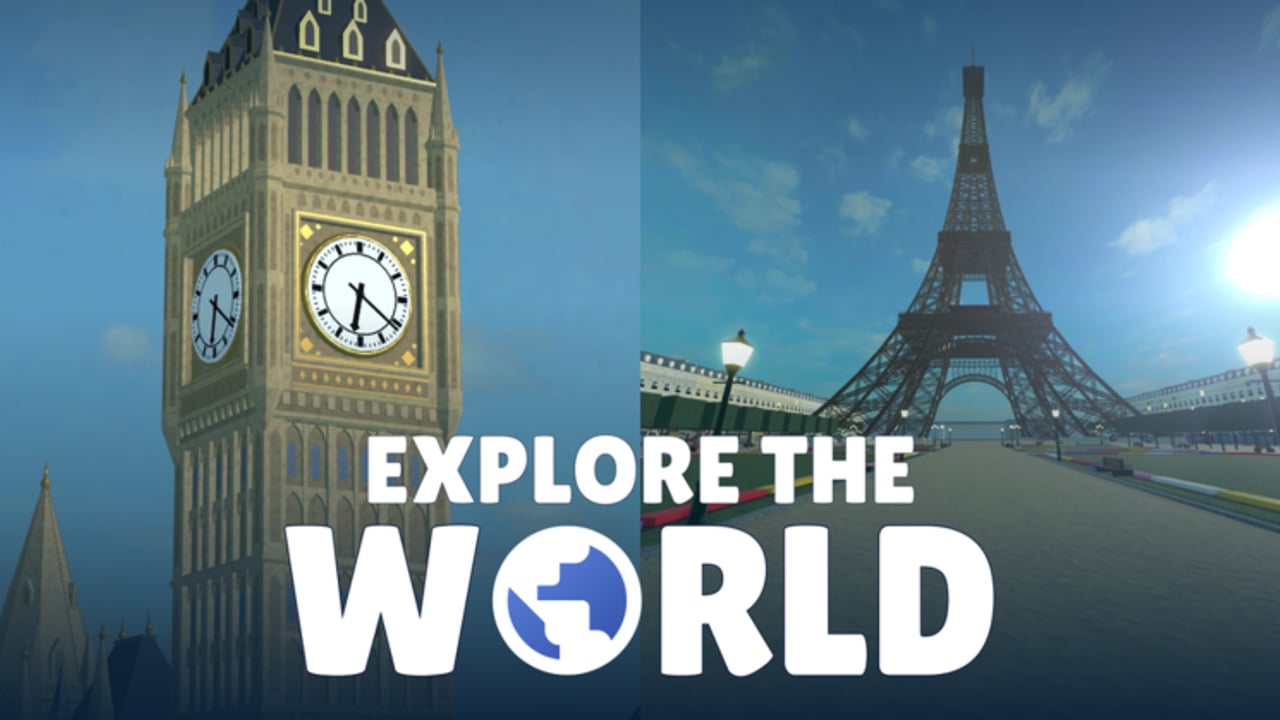
Explore the World plays on Roblox across PC, mobile, and console, so the same Saltmere-to-city fantasy can feel different depending on how you move, look, and tap UI. This controls guide focuses on passenger tasks: reaching kiosks, finishing check-in prompts, clearing security, boarding on time, using in-flight menus, and sightseeing in Paris or London without fighting the camera.
Pair it with Getting Started for the overall loop and How to Check In when a prompt seems broken but is actually a missed interaction.
Shared Roblox basics that matter here
Explore the World uses standard Roblox movement and camera patterns. You walk through a crowded hub airport (servers up to 50 players), interact with desks and kiosks, then sit through cabin and city set pieces. Precision matters more at UI moments than during open walking. If you can reliably open prompts and confirm buttons, you can earn Boarding Pass and Wheels Up on any device.
General habits that prevent missed flights:
- Face the kiosk or desk squarely before interacting.
- Wait for confirmation before walking away.
- Keep the camera high enough to see boarding-related UI.
- Avoid sprinting through security animations.
- When friends talk in chat, still glance at the gate.
PC controls tips
PC players usually have the easiest time with precise clicks on check-in screens and in-flight menus.
- Use keyboard movement to line up with kiosks; micro-adjust before pressing the interact key.
- Mouse look helps you spot desk signs in a busy Saltmere terminal.
- Click prompts once and wait - double-click spam can desync some UI flows.
- Zoom the camera out slightly in the terminal so you can see both friends and overhead cues.
- In cities, click-drag carefully around the Eiffel Tower lifts or London Eye so you do not pivot away from interactables.
PC is ideal for hosting a Private Jet party because chat, camera, and menus are easy to juggle while calling boarding times.
Mobile controls tips
Touch controls are fully valid - Explore the World is built for Roblox’s wide audience - but thumb overlap is the main risk.
- Move the jump/interact cluster mentally: know where your interact control sits before you reach a kiosk.
- Zoom out in Saltmere so dynamic thumb sticks do not cover signage.
- Tap check-in buttons deliberately; wait for the Boarding Pass feedback.
- During security, keep both thumbs ready: one for movement, one for prompts.
- In-flight meal and map UI can be small - rotate to landscape if your device allows clearer menus.
- At landmarks, pinch-zoom for postcard screenshots, then restore a wider camera before walking to the next prop.
If mobile players in your party struggle, let a PC friend lead timing calls while mobile travelers focus on movement. Everyone can still earn city stamps described in the Paris Guide and London Guide.
Console controls tips
Gamepad players should treat sensitivity as a settings priority.
- Lower camera sensitivity slightly for kiosk alignment and menu sticks.
- Hold a steady approach to desks; over-steering causes failed interact attempts.
- Use the interact button only when the prompt is visible - pressing early does nothing and wastes time.
- In First Class lie-flat or jet interiors, nudge the camera up to keep menus readable.
- For postcard photos, stop moving completely before adjusting look angle.
Console parties work well for sightseeing once Saltmere timing is rehearsed. Run a dry Economy flight before spending on Private Jet seats.
Control moments mapped to the passenger loop
- Saltmere spawn / Play - confirm the Play interaction for Welcome to Saltmere.
- Kiosk or desk - precise interact + UI confirms for Boarding Pass.
- Security - short movement through screening with carry-on prompts.
- Terminal downtime - arcade and snacks are optional; keep camera aware of boarding.
- Gate / boarding - pathing under time pressure; do not AFK in a massage chair.
- Cabin - seat view, meal orders, games, live flight map.
- Landing + bus - follow the flow; do not disconnect early.
- City exploration - lifts, Eye rides, photo framing for postcards and stamps.
When any step fails repeatedly, the fault is often camera angle or walking away mid-UI - not a missing code. Still verify promos on the Codes Hub only when you intentionally want rewards, using how to redeem.
Accessibility and comfort settings
- Reduce motion discomfort by easing camera shake sensitivity where Roblox settings allow.
- Increase UI scale on mobile if check-in text is hard to read.
- Play seated sessions with breaks; Frequent Flyer (10 landings) and distance badges take multiple flights.
- Use party voice or chat sparingly during boarding windows so nobody misses cues.
Controls for badge-focused play
Badge hunters need clean confirmations more than fancy movement tech. Before a Two-City Traveller push, rehearse Boarding Pass once. Before Postcard Collector attempts, practice stopping and framing shots. Before Jet Set, make sure every guest can interact with jet boarding without dropping inputs - see Passport & Badges and the badges list.
Keep the flight checklist open on a second screen if you are teaching friends. The passport tracker helps after cities when you are tabbing between photos and saves.
What controls cannot fix
- They cannot skip Tartan Studios’ airport sequence.
- They cannot invent destinations beyond Paris and London until updates add them - watch Updates and the changelog.
- They cannot make unverified scripts safe; avoid auto-check-in executors described cautiously on Scripts and the safety guide.
- They cannot replace reading cabin value on the cabin classes tier list.
Quick troubleshooting
- Interact does nothing: reposition, face the object, wait for the prompt, try again.
- Check-in resets: you left the UI early; redo kiosk or desk fully.
- Missed boarding on mobile: thumb covered the cue; zoom out and assign a friend as timer.
- Cannot frame postcards: stand still, adjust camera, then save.
- Jet menus awkward: learn Economy UI first, then upgrade.
Mastering controls in Explore the World is less about advanced parkour and more about respectful, patient UI. Move with purpose at Saltmere, confirm every passenger step, then relax the camera for Eiffel Tower lifts or London Eye views. When you need route tactics instead of input help, return to the Guides Hub and pick the next city or cabin page.
Frequently Asked Questions
Quick answers to the most common questions.
Does Explore the World support mobile and console?
Yes. It runs on Roblox for PC, mobile, and console. Learn interact prompts on your device before busy boarding windows.
Why can't I finish check-in on mobile?
Usually a missed tap or walking away mid-UI. Face the kiosk or desk, tap once, and wait for Boarding Pass confirmation.
What camera settings help at Saltmere?
Zoom out enough to see signs and friends, and lower sensitivity on controllers so you can align with desks cleanly.
Do I need special controls for First Class or Private Jet?
No unique combat controls. You still use normal movement and UI - practice Economy prompts before spending on upgrades.
How do controls affect postcard photos?
Stop moving, frame the landmark, then save. Unsteady cameras on mobile are a common reason postcard progress feels inconsistent.